contents
Your DUDE deployment can keep doing its job while the PowerShell version underneath it approaches the end of support.
PowerShell 7.4 reaches that point on November 10, 2026. If your DUDE Function App still uses 7.4, plan the move to 7.6 before then. Microsoft’s PowerShell support lifecycle has the dates.
DUDE Manager v1.8.0 helps you find the old stack and upgrade it through the app. Verify reports the mismatch. Deploy/Update moves eligible Windows Function Apps to PowerShell 7.6.
The workflow is straightforward: download the new DUDE Manager, verify the existing deployment, select Debug and disable the timer, deploy the update, review a manual run, then return to Production and enable the timer again. The manual Azure portal route is covered further down if you prefer it.
Three versions, three different jobs
DUDE keeps device groups aligned with user group membership for Intune targeting. Optionally, it also syncs users and their devices into Microsoft Entra Administrative Units to support scoped administration, and applies Microsoft Defender for Endpoint device tags for security visibility and device grouping.
The sync runs in an Azure Function. DUDE Manager is the Windows application used to configure and manage it.
For this release, keep three version numbers separate:
- DUDE Manager v1.8.0: the GUI and PowerShell module.
- DUDE Runtime v13.17.5: the deployed sync code, unchanged in this release.
- PowerShell 7.6: the execution stack selected for the Function App.
Downloading the new DUDE Manager alone does not change an existing Function App. The stack upgrade happens when you run Deploy/Update against an eligible deployment.
1. Download v1.8.0 and run Verify
Get DUDE Manager v1.8.0 from the GitHub releases page. Open it, connect to the intended tenant and subscription, and select your existing DUDE resources on Setup.
Run Verify. In the Function App result, check Azure PowerShell stack. A configured 7.4 stack is reported as a warning against the expected 7.6. Verify checks the configuration; it does not perform the upgrade.
If the stack is already 7.6, there is no 7.4-to-7.6 upgrade to do. If the result is unknown or another validation fails, investigate that result before deploying.
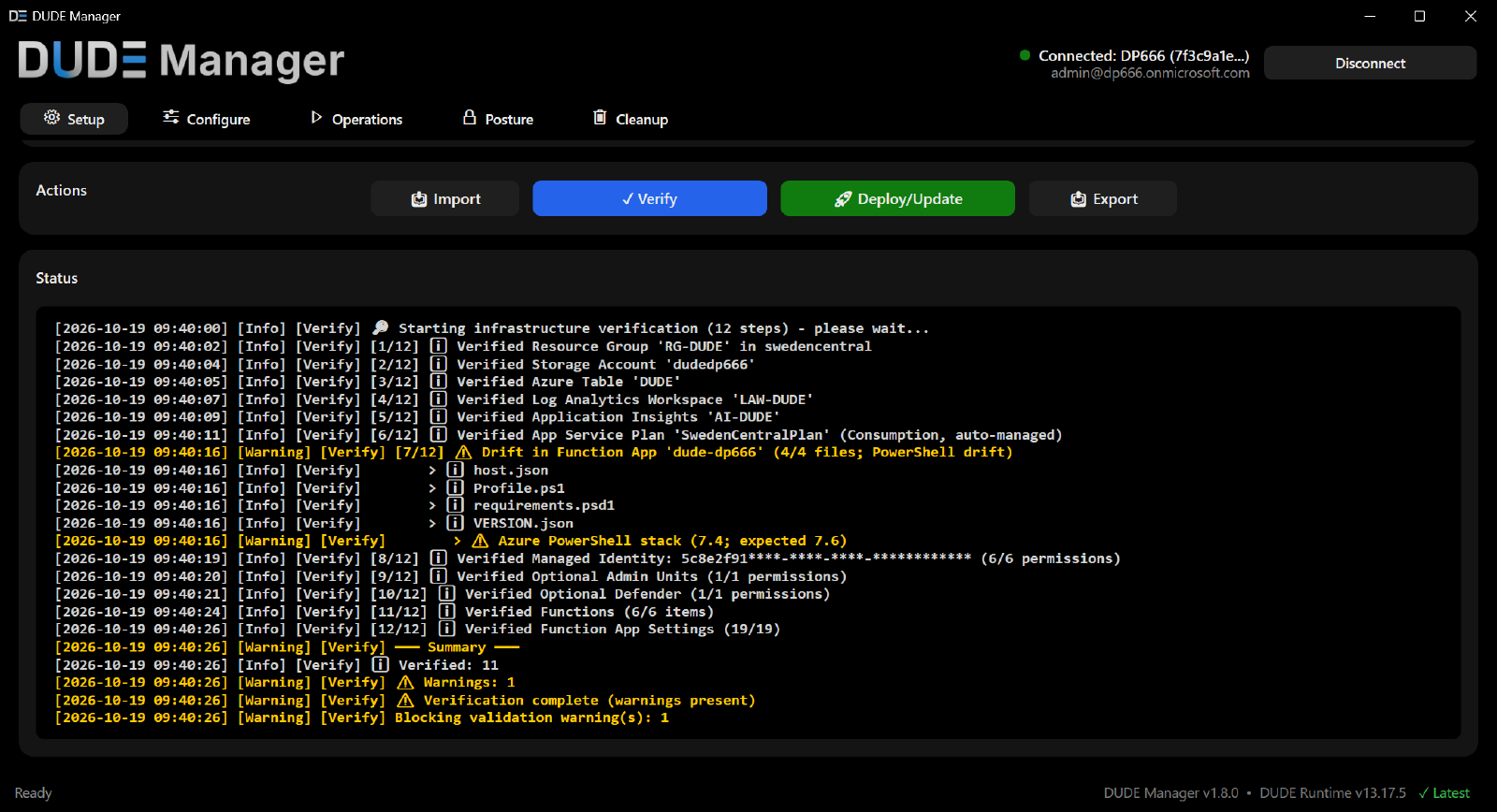
Verify flags the configured PowerShell 7.4 stack against the expected 7.6.
2. Select Debug, disable the timer and run Deploy/Update
Keep a record of the working deployment and configuration. Let any active DUDE run finish before updating. On Setup, set Execution Mode to Debug and Timer State to Disabled, then review the selected resources and configuration.
Run Deploy/Update to apply the selected configuration and upgrade the eligible Function App’s PowerShell stack. Changing the selections alone does not apply them. Wait for deployment to finish, then confirm the deployed mode is Debug and the timer is Disabled before starting a test run. DUDE Manager blocks Run Now while the timer is enabled.
The stack change happens in deployment Step 7; the requested Debug and timer settings are applied later, in Step 12. Selecting them does not immediately change the running app or protect the whole update. Check the actual app state after any restart.
For an eligible existing Windows app on 7.4, DUDE Manager checks the target identity, PowerShell worker, Functions runtime and hosting plan before requesting 7.6. It then reads the stack configuration back from Azure. If eligibility cannot be established, it does not guess.
This is the full deployment flow, so review its results beyond the stack change. If it fails partway through, confirm the deployed stack and execution mode before allowing another run.
Microsoft supports PowerShell 7.6 on Functions 4 across the supported hosting plans except Linux Consumption. DUDE Manager’s automatic upgrade is narrower: eligible Windows deployments on 7.4. New Windows Function Apps created through DUDE Manager request 7.6 from the start. Azure Functions PowerShell versions.
Schedule the change: switching the stack restarts the app. Debug does not remove that interruption. Microsoft recommends compatibility testing before changing the stack; a separate test installation remains an option if you need that evidence before touching production. Microsoft’s migration instructions.
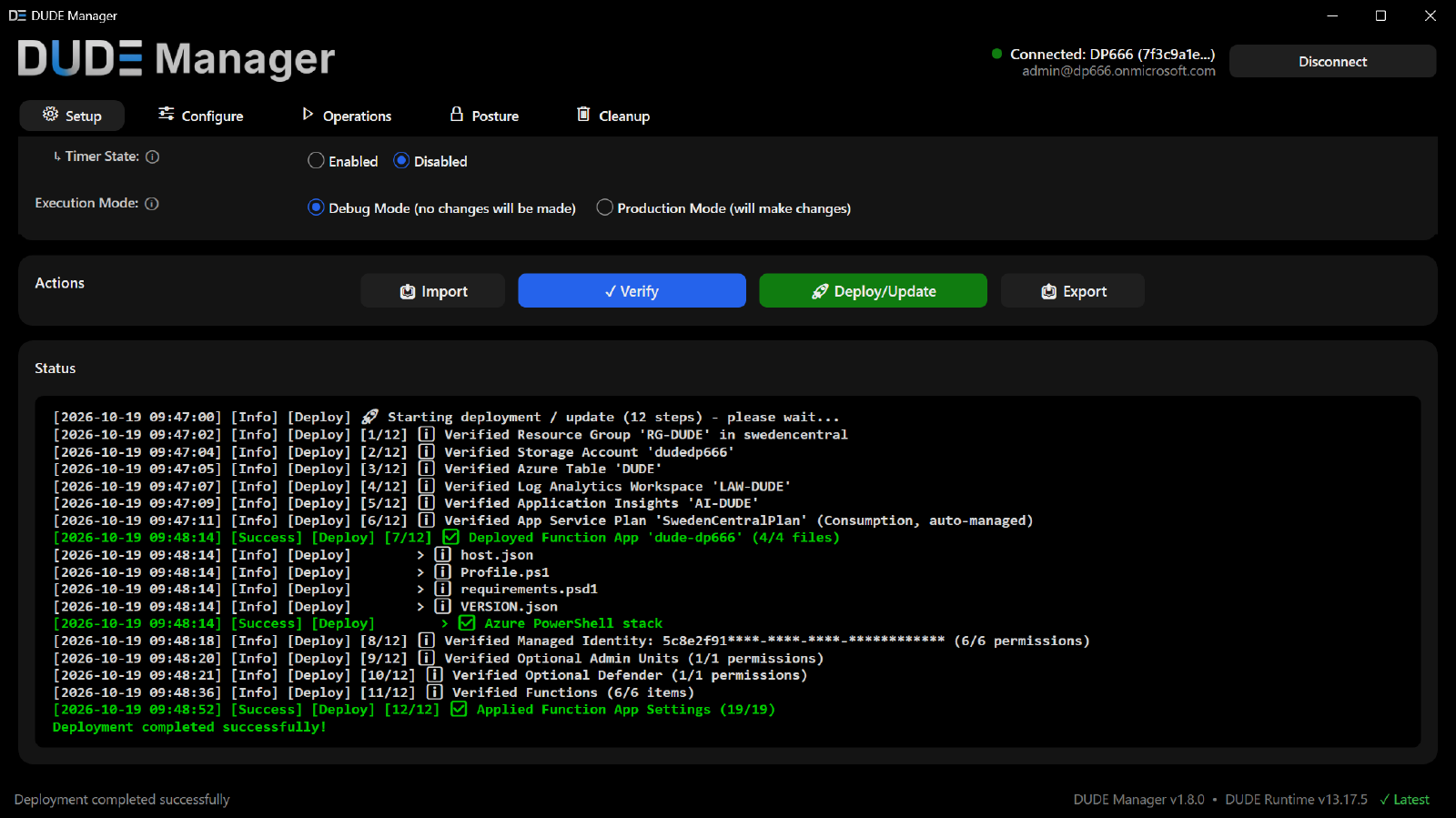
Setup with Debug and Timer Disabled selected, followed by Deploy/Update results showing the PowerShell stack check and applied Function App settings.
3. Review the Debug run
Confirm the app is running. Check that Function App shows Mode: Debug and Schedule shows Timer: Disabled | Manual: Enabled. Use Run Now and check Recent Executions and Function App Logs. Confirm the run is in Debug/WhatIf, then review failures and planned changes.
If DUDE Manager reports that the timer state is unknown, run Verify on Setup to refresh it. If the timer is still enabled, set Timer State to Disabled and apply it with Deploy/Update before trying Run Now again.
Debug previews group membership, Administrative Unit membership and Defender tag changes without applying them. Run status and logs are still written. Normal sync changes are paused while Debug is enabled.
This checks startup, data retrieval and planned changes. It does not exercise the actual membership or tag writes.
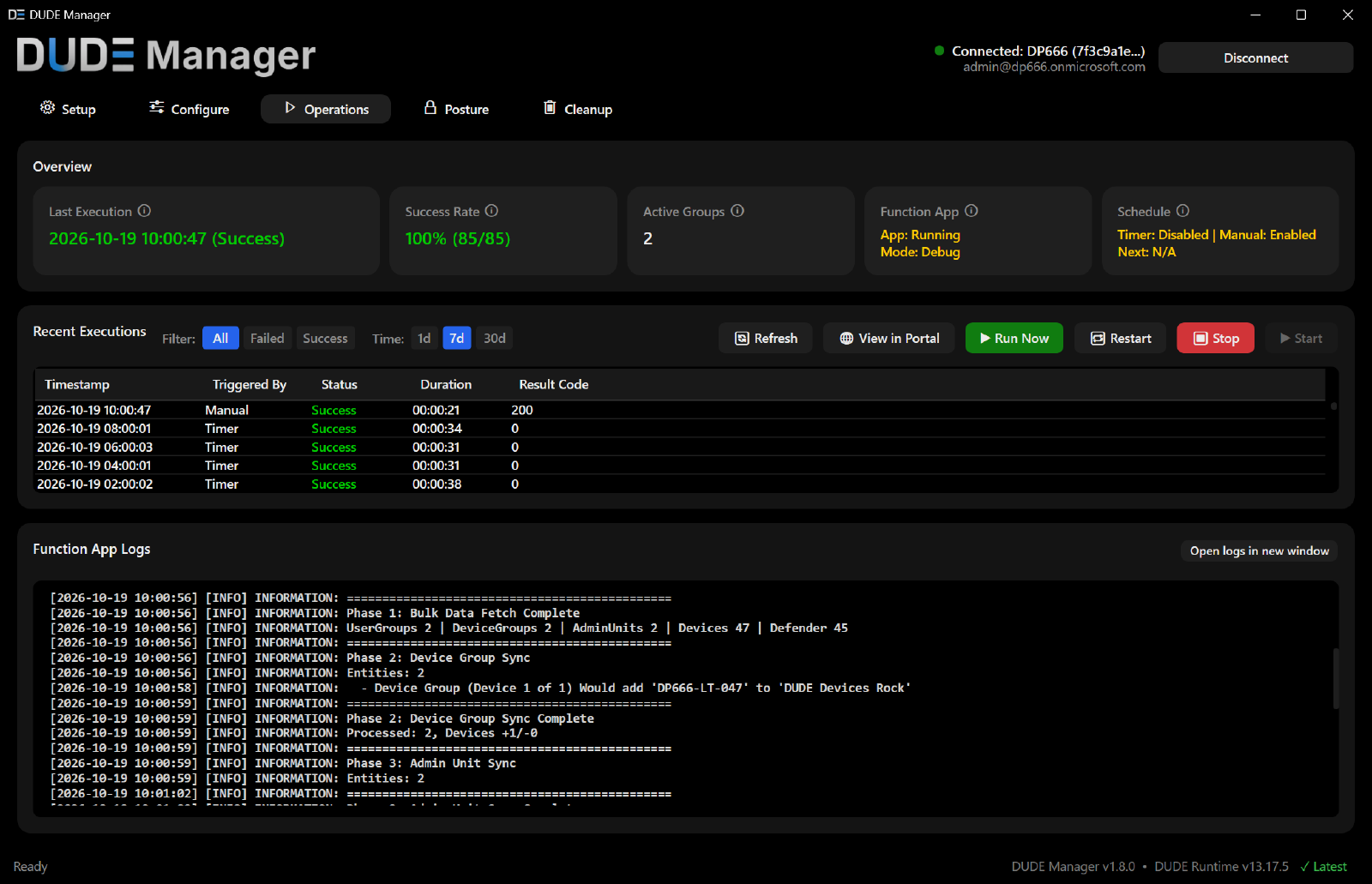
Operations shows Debug mode with the timer disabled, a manual test run and WhatIf logs describing the changes DUDE would make.
Run Verify again to check the configured stack. Keep the evidence separate: Azure configuration readback confirms the selected stack; observing the version inside the Azure worker confirms the executing PowerShell version; a successful production sync confirms the real operations work.
4. Return to Production, optionally with a few mappings
For a smaller first production run, use Configure to set Enabled to false on the other mapping rows, leaving only a few selected mappings enabled. Disabled rows are skipped without being deleted; sync for those mappings is paused. Record which rows you disable so you can restore their previous state.
Review the reduced set with Run Now while still in Debug with the timer disabled. Once the planned changes look right, select Production and set Timer State back to Enabled on Setup, then apply both through Deploy/Update. Confirm the deployed mode and timer state on Operations.
Wait for the next scheduled production run and verify the actual membership and tag results for the features you use. Run Now is blocked again once the timer is enabled. Re-enable only the mappings you temporarily disabled once the results look right, then verify the wider sync on a subsequent scheduled run.
If execution fails, pause further runs while you investigate. Keep the deployed configuration and execution mode in view when deciding how to recover.
Prefer to change the stack manually?
You can also change the stack directly in Azure. For a manual test run afterward, confirm Debug is deployed and the timer is disabled before the stack change. Use the same Debug/Production verification above, including enabling the timer again when returning to scheduled production runs.
- Open the intended Function App in the Azure portal.
- Under Settings, open Configuration, then Stack settings.
- Select 7.6 as the PowerShell version.
- Select Apply, acknowledge any restart confirmation, and confirm the saved version afterward.
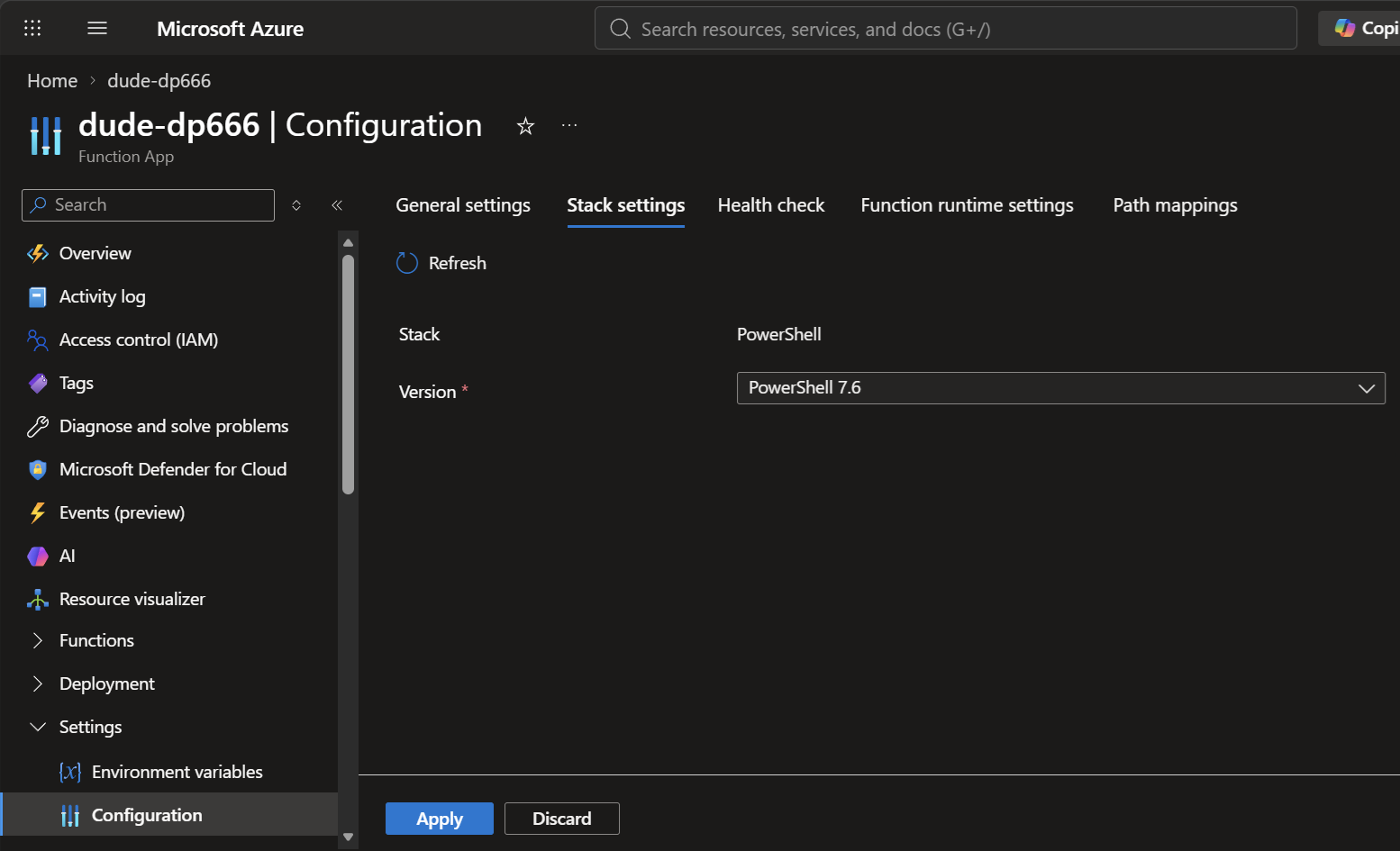
Select PowerShell 7.6 under Stack settings and apply the change.
The portal route changes the stack without updating the deployed DUDE code. Follow Microsoft’s instructions, then review the Debug run and production sync as above.
Also in v1.8.0: true black
The app has a true-black theme now. Black background, filled cards, clearer button states and a more compact header.
Yes, I spent time making dark mode actually true black.
The Setup and Operations illustrations above also show the new theme.
There are two other changes worth knowing about in this update:
- Browser sign-in on Windows on ARM, replacing device-code sign-in on that platform.
- A startup update check reports newer public DUDE Manager and DUDE Runtime releases. It checks availability; it does not download or install them. Set
DUDE_UPDATE_CHECK=0to turn it off.
The remaining fixes are in the release notes.
Check your Function App’s stack. Test the upgrade. Verify the sync.
The new paint job can wait until after that.